
1. Where to Manage Your Leads
After a lead has been assigned to you, it can be managed in two different areas of HubSpot:
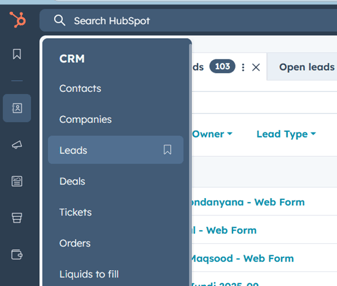
Option 1: CRM > Leads
You can open the CRM menu and select “Leads”.
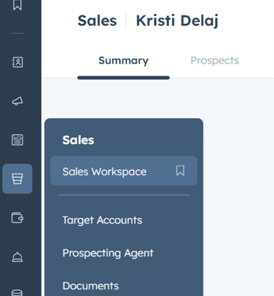
Option 2: Sales Workspace > Prospects
Alternatively, go to the Sales menu, open the Sales Workspace, and select the Prospects view.
In both locations, you will see all the leads that have been assigned to you.
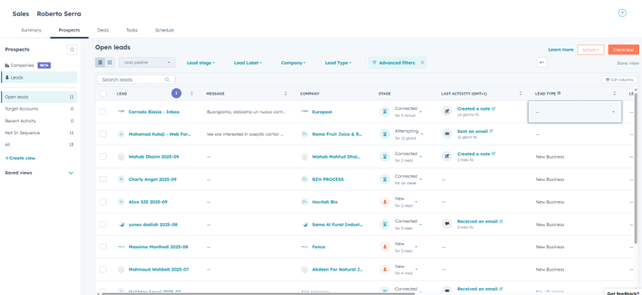
Lead Type
The Lead type column refers to the commercial opportunity represented by the lead:
- New business: a first sale to a non-customer
- Upsell: selling additional products or services to an existing customer
- Re-attempting: retrying a lead you previously contacted but did not convert
2. Lead Stages
All leads start in the New stage. You can verify the current lead stage:
- By clicking on the contact name (a panel opens on the right side)
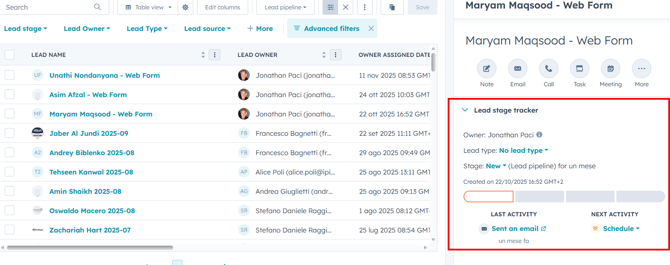
- Or directly from the Lead Stage column in the leads table
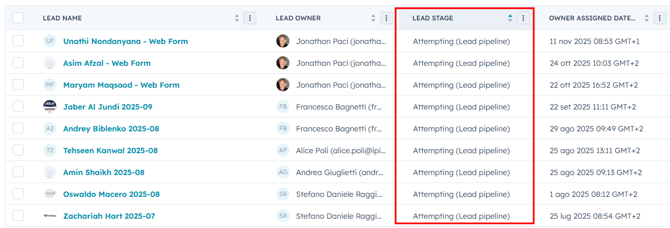
From this point, HubSpot uses automated rules to advance the lead through the first two stages: Attempted Contact and Connected.
Automatic Stage: Attempted Contact
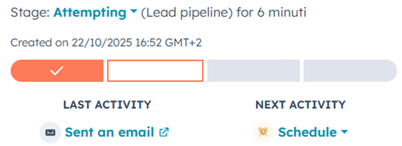
HubSpot automatically moves a lead to Attempted Contact when the Lead Owner sends an email through HubSpot in reply to the contact.
This indicates that an attempt to contact the prospect has been made.
Automatic Stage: Connected
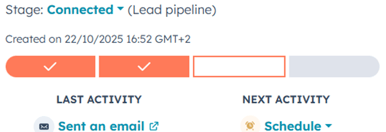
A lead is automatically moved to Connected when the prospect interacts with you, for example by replying to the Lead Owner’s email.
Important Note on Phone Calls
If a call is made outside HubSpot and is not logged in the CRM, the system cannot track it and will not update the lead stage automatically. In this case, the Lead Owner must manually update the lead stage and add a note explaining that the contact has been reached.
Manual Lead Stage Updates
Automatic updates apply only to the stages Attempted Contact and Connected.
Any further updates to the lead must be made manually by the Lead Owner as the conversation progresses.
3. Qualification and Disqualification
Once you understand the outcome of your interaction with the prospect, you must manually choose one of the following paths.
Qualified Lead
A lead is considered qualified when:
- The conversation is progressing
- The prospect is genuinely interested
- You believe a sales opportunity exists

What Happens After Qualification
Once a lead is marked as Qualified, it:
- Is removed from the Leads / Prospects board
- Moves into the Deals pipeline
- Becomes part of the sales process
From this point onward, all commercial negotiations are tracked and managed within the Deals pipeline.
Disqualified Lead
A lead must be marked as Disqualified, for example, when:
- There is no budget
- The timing is not right
- The request is irrelevant
- The prospect shows no real interest
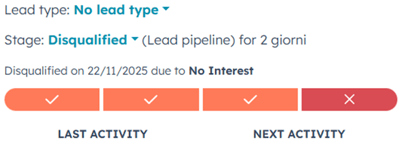
When disqualifying a lead, you must select Disqualified, choose a reason from the predefined list, and add a short explanation in the contact’s notes.
Disqualified leads are automatically hidden from the Lead board, but they are not deleted:
- The contact remains in the CRM
- The previous lead remains stored