
1. Lead Assignment Notification
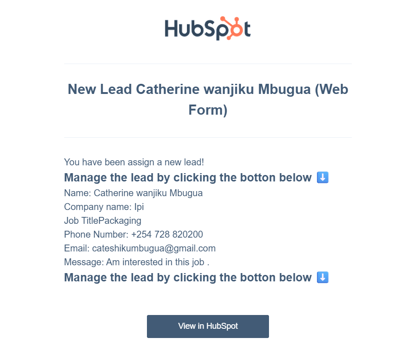
When a new lead is assigned to you, you will receive an automatic email notification.
The notification email includes:
- All relevant details about the lead
- A direct link to manage the lead in HubSpot
2. Accessing the Lead in HubSpot
- Open the notification email
- Click on “View on HubSpot”
You will be redirected to your Sales Workspace, where you can see all leads assigned to you.
Important:
Do not manage leads directly in Outlook by replying or forwarding the email. Emails sent outside HubSpot will not be tracked.
If you need to call the contact directly (instead of replying via email):
- You may do so
- Remember to manually update the Lead Status in HubSpot afterward
3. Opening the Lead Record
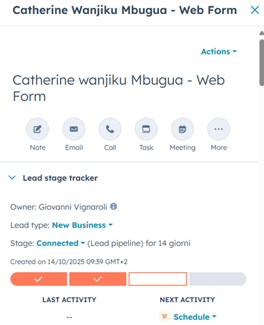
- Click on the lead’s name to open the lead profile
- On the right-hand side, you will find:
- Contact details
- Company information (if available)
4. Replying to the Lead via HubSpot
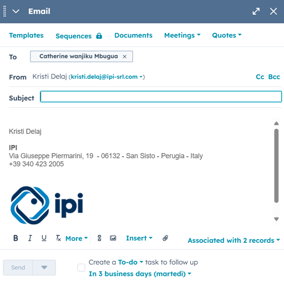
- Click on the email icon in the lead record
- A new email window will open
- Check that:
- The lead’s email address is present
- The subject line is appropriate and clear
5. Using the Correct Email Template
- Open the Templates section
- Select the appropriate template
- “Reply new lead WEBFORM”
- “Reply new lead INBOX”
You can identify the lead source directly next to the contact’s name in HubSpot.

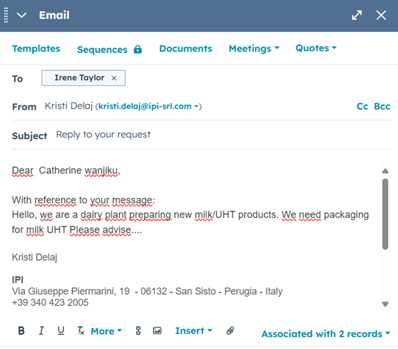
The selected template will:
- Help structure your reply
- Allow content personalization
- Automatically include the lead’s original request in the email
6. Sending the Email
- Review and personalize the message as needed
- When ready, send the email directly from HubSpot
The interaction will be automatically logged and tracked in the lead record.