
How to Register Trade Fair Contacts in HubSpot Mobile App & Assign Fair Code (with Note)
Step 1: Open HubSpot Mobile App
-
Open the HubSpot app on your mobile device (if you are not installed, find on Playstore or APPStore)
Step 2: Scan the Business Card (or Add Contact Manually)
-
Tap the "+" button (usually bottom right or top).
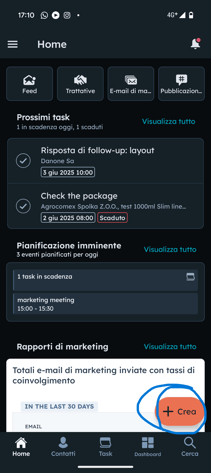
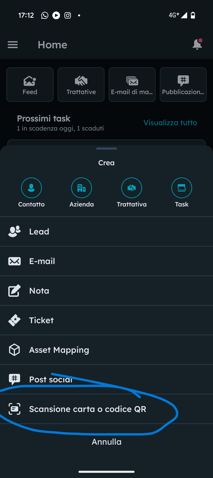
-
Select "Scan business card".
-
Take a clear photo of the business card. Make sure it’s well-lit and all information is visible.
-
Check the captured fields (Name, Email, Company, Phone, etc.). Edit if necessary or missing
-
Tap "Save" to create the contact.
Alternative:
-
If the contact is from a QR code or manual entry, tap "+" > "Create contact" and fill in the main details.
(Take a screenshot of the "Scan business card" screen and of the filled-out contact preview before saving.)
Step 3: Add a Note with the Fair Code
-
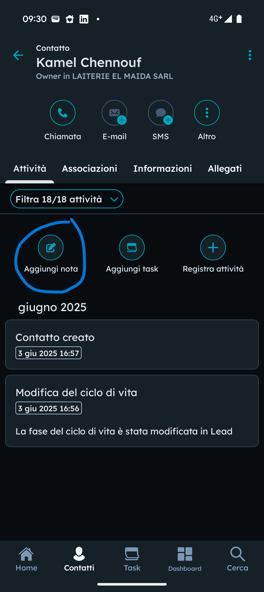
Once the contact is saved, open the contact record (it usually opens automatically after creation).
-
Tap "Add note" (icon looks like a notepad or "+ Note").
-
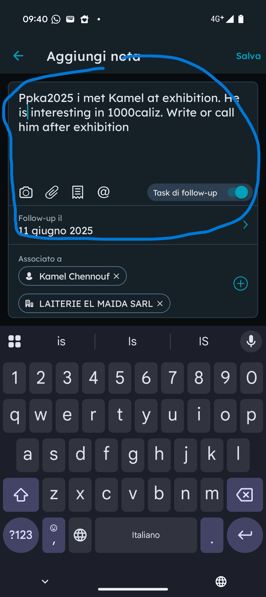
In the note text, start with the fair code for the event, for example:
-
PPKA2025for Propak Asia 2025 -
SENE2025for Senepak 2025 -
(code of exhibition will be gived you by Marketing team)EXPOMEXICO2025for Expo Pack Guadalajara Mexico
-
-
Example note: (please write in English)
PPKA2025
Interested in aseptic carton packaging for dairy.
Follow up: send technical brochure and sample. -
You can add more details about your conversation or follow-up tasks.
-
Tap "Save" or "Add note" to record.
(Take a screenshot of the "Add note" screen with the fair code at the top of the note.)
Step 4: (Optional) Attach a Photo or Document
-
If you want to attach the business card photo or any document, use the attachment/paperclip icon in the note screen.
-
Select the file/photo to upload.
Step 5: Repeat for Each New Contact
-
Repeat the process for every new contact you meet at the fair.
-
Make sure each note starts with the correct fair code.